Weak passwords remain one of the most common security risks for WordPress websites. Even with CAPTCHA protection enabled, user accounts can still be vulnerable if simple passwords are allowed during registration.
The reCaptcha plugin now includes a new feature called Force Strong Passwords (FSP). This option strengthens account protection by enforcing strict password requirements on the default WordPress registration form.
This article explains how to enable the feature and configure its settings.
What Is Force Strong Passwords (FSP)?
The Force Strong Passwords (FSP) option requires users to create stronger passwords during registration.
When enabled, passwords must:
- Include uppercase letters
- Include lowercase letters
- Include numbers
- Meet a minimum character length
This feature applies only to the default WordPress registration form.
How to Enable Force Strong Passwords
To activate the feature:
- Go to reCaptcha → Settings
- Locate the option Force Strong Passwords (FSP)
- Enable the setting
- Save changes
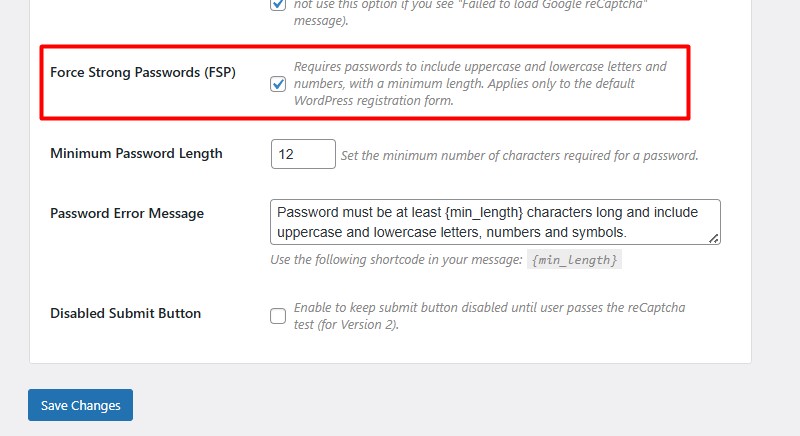
Once enabled, additional configuration options become available.
Additional Settings After Enabling FSP
After activating the feature, you will see two new options:
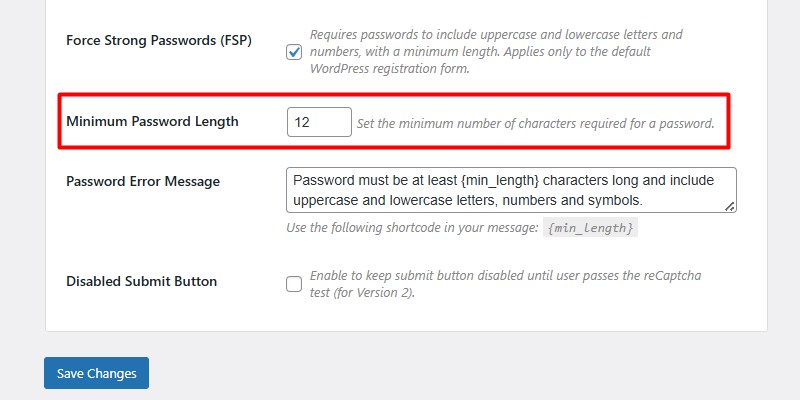
1. Minimum Password Length
Default value: 12
This defines the minimum number of characters required for user passwords.
You can increase or decrease the value depending on your security policy.
2. Password Error Message
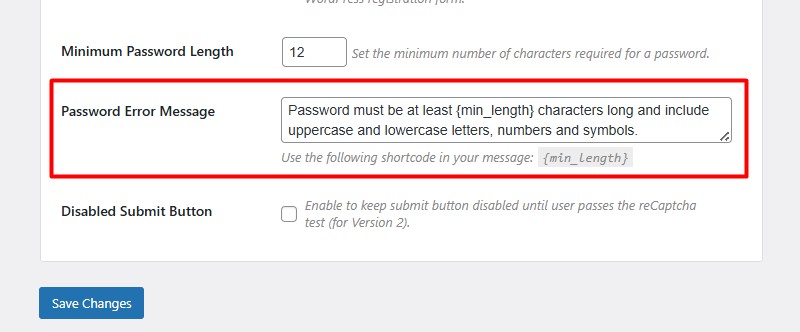
You can customize the validation message shown when a user enters a weak password.
Default message example:
Password must be at least {min_length} characters long and include uppercase and lowercase letters, numbers and symbols.
The following shortcode is supported:
- {min_length} — automatically displays the required minimum length
This allows the error message to dynamically reflect your password policy.
How It Works on the Frontend
When a user attempts to register with a password that does not meet the requirements:
- The form will not be submitted
- The custom error message will be displayed
- The user must create a stronger password
The validation happens during the registration process and prevents weak credentials from being saved.
Why This Feature Is Important
Enforcing strong passwords helps:
- Reduce brute-force attack success rates
- Prevent weak user credentials
- Improve overall WordPress security
- Protect administrator and subscriber accounts
- Strengthen compliance with security best practices
Combined with reCAPTCHA protection, this creates an additional layer of defense at the registration level.
Important Note
The Force Strong Passwords feature applies only to the default WordPress registration form.
It does not automatically apply to third-party forms or custom registration systems unless they use the default WordPress mechanism.
FAQ
Does this affect existing users?
No. The feature only applies to new registrations after it is enabled.
Can I change the minimum password length?
Yes. You can set any minimum length according to your security policy.
Can I customize the error message?
Yes. The message field supports the {min_length} shortcode for dynamic display.
Does this replace WordPress password strength meter?
It enhances password enforcement by preventing weak passwords from being submitted.
Does it work with WooCommerce registration?
It applies only if WooCommerce uses the default WordPress registration form.
Conclusion
The new Force Strong Passwords (FSP) feature in the reCaptcha plugin adds an important security improvement to WordPress registration. By enforcing password complexity and minimum length requirements, you reduce risks related to weak credentials and unauthorized access.
If you are serious about WordPress security, enabling strong password enforcement is a simple but highly effective step.