
Images are often the most valuable assets on a website — especially for photographers, designers, bloggers, and businesses showcasing original visual content. To protect images from unauthorized reuse, the Gallery plugin by BestWebSoft now includes a new Watermark Protection feature.
This feature allows you to automatically add text or image watermarks to gallery images during upload, helping you safeguard your visual content without additional plugins or manual editing.
In this article, you’ll learn how the watermark feature works, how to configure it, and when it’s best to use text or image watermarks.
What Is Watermark Protection in WordPress Galleries?
Watermark protection adds a visible overlay (text or image) to gallery images. This makes it harder for others to reuse your images without permission while still allowing visitors to view them normally.
The Gallery plugin offers:
- Text watermarks
- Image-based watermarks
- Adjustable opacity
- Automatic processing for newly uploaded images
Watermark Protection Settings Overview
You can find the new feature in:
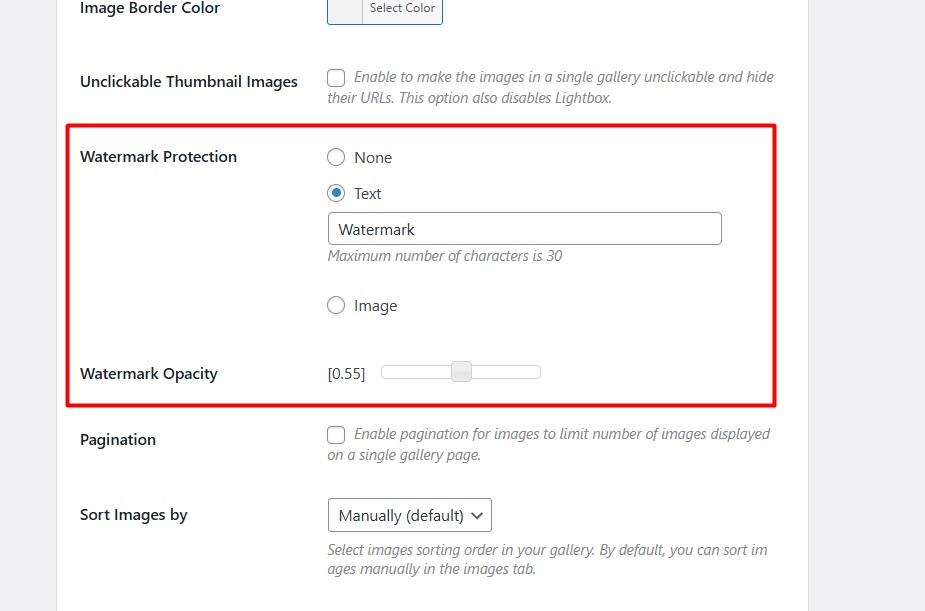
Gallery → Global Settings → Watermark Protection
Available options include:
Watermark Protection Types
- None – watermarking disabled
- Text – add a custom text watermark
- Image – overlay an image watermark
Adding a Text Watermark
When selecting Text Watermark, additional settings appear.
Text Watermark Options
- Watermark text (up to 30 characters)
- Watermark opacity (default: 0.55)
The character limit helps keep watermarks readable and visually balanced, preventing overly large or intrusive text.
When to use text watermarks
- Copyright notices (© Your Brand)
- Website name or domain
- Photographer or author name
- Lightweight branding for blogs and portfolios
Adding an Image Watermark
If you select Image Watermark, you can upload a logo or custom image that will be applied as a watermark.
Image Watermark Options
- Upload watermark image
- Adjust Watermark Opacity (e.g., 0.55)
When to use image watermarks
- Brand logos
- Professional photography portfolios
- Product image protection
- Stock photo previews
Watermark Preview: How It Looks on Uploaded Images
After enabling Watermark Protection and uploading a new image to your gallery, the watermark is applied automatically during the upload process. This allows you to instantly see how the watermark appears on real images without any manual editing.
Below is an example of an image uploaded to the gallery with an active watermark. You can clearly see how the watermark blends with the image while still protecting it from unauthorized reuse.
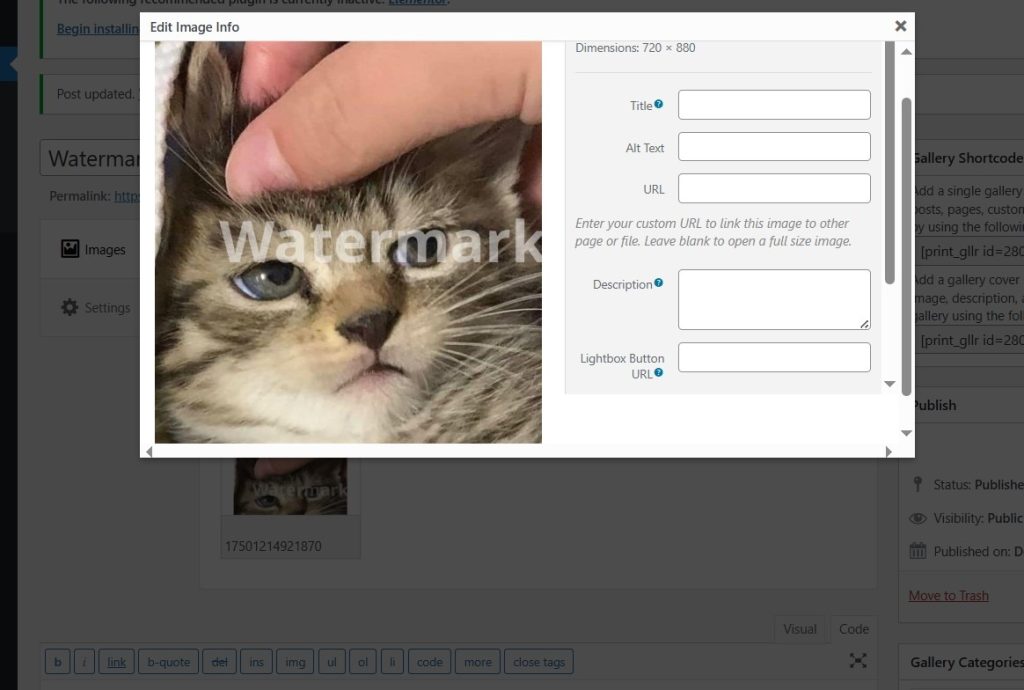
This preview helps you:
- Check watermark visibility and opacity
- Make sure the text or logo doesn’t interfere with important image details
- Adjust watermark settings before uploading more images
Watermark Opacity Explained
The Watermark Opacity setting controls how visible the watermark appears on images.
- Lower values → subtle watermark
- Higher values → stronger visual protection
Recommended value 0.55 offers a good balance between visibility and image quality.
Important: Applies Only to Newly Uploaded Images
⚠️ Important behavior to note:
Watermarks are applied only to images uploaded after the feature is enabled.
Existing images in your gallery will not be modified automatically. This ensures:
- No unexpected changes to already published content
- No performance impact on large existing galleries
If you need watermarks on older images, they must be re-uploaded or regenerated.
Practical Use Cases
Photography Websites
Protect original photos while still showcasing them publicly.
Online Stores and Portfolios
Prevent competitors from copying product images or design previews.
Educational and Media Websites
Add branding to diagrams, charts, and instructional images.
Stock or Preview Galleries
Use watermarks as a visual deterrent before purchase or licensing.
SEO and Performance Benefits
- No external watermark plugins required
- Watermarks applied during upload (no runtime performance impact)
- Images remain indexable by search engines
- Protects visual branding without affecting gallery structure
FAQ
Does watermarking affect image quality?
No. The original image resolution remains unchanged. Only a visible overlay is added.
Can I remove watermarks later?
Watermarks are applied during upload. To remove them, the original image must be uploaded again without watermarking enabled.
Will watermarks appear in the lightbox view?
Yes. Watermarks are part of the image file and appear in all gallery views.
Can I change watermark opacity later?
Yes, but changes will apply only to images uploaded after updating the setting.
Does watermarking affect SEO?
No. Search engines can still index your images normally.
Conclusion
The new Watermark Protection feature in the Gallery plugin by BestWebSoft offers a simple and effective way to protect visual content in WordPress. With support for text and image watermarks, adjustable opacity, and automatic processing for new uploads, it’s an excellent solution for anyone who values image ownership and brand visibility.
If your website relies on original images, enabling watermark protection is a smart and practical step toward better content security.