Protecting the WordPress login page is one of the most important steps in preventing brute-force attacks and unauthorized administrator access. Many bots constantly scan default login URLs such as wp-login.php or /wp-admin/. The reCaptcha plugin now includes two new security features that help you protect access and monitor logins without installing additional security plugins.
In this guide, we will show how to:
• Hide the default login page
• Create a unique login slug
• Redirect visitors who try to access a wrong login URL
• Enable admin login email notifications
• Use available shortcodes for detailed alerts
1. Hide WordPress Login Page (Hide Login URL)
This feature allows you to completely replace the default login URL with a custom slug. By doing so, you significantly reduce bot access attempts and automated brute-force attacks.
How to enable
- Go to WordPress Dashboard
- Open reCaptcha plugin settings
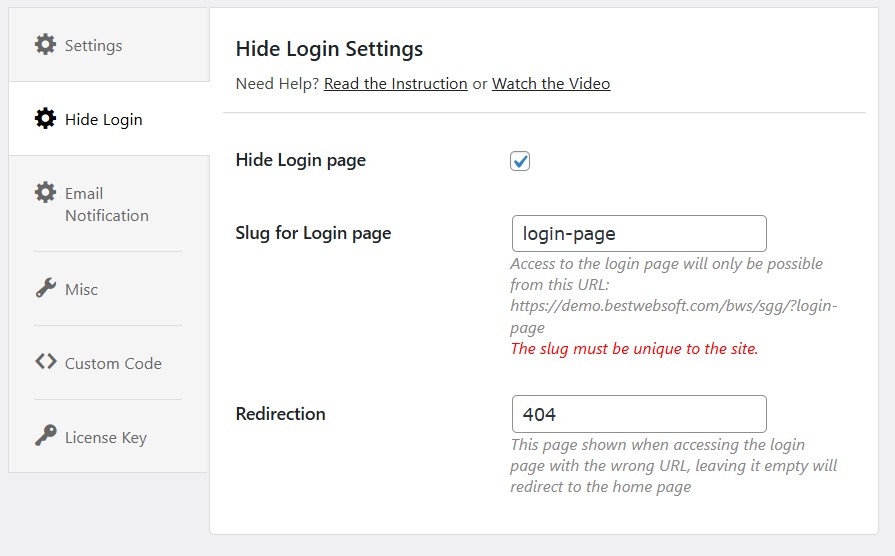
- Go to the tab Hide Login
- Enable the option Hide Login page
Choosing a custom login slug
Below the Hide Login setting, you will see the field:
Slug for Login page
(login-page) – example
This becomes your new login URL, for example:
https://example.com/?login-page
Important note: The slug must be unique and should not match a page or post you already have.
Wrong URL access and redirection
If someone tries to open /wp-admin or wp-login.php, you can redirect them to a specific location.
Redirection options:
• 404 page
• leave empty (redirect to Homepage)
Recommended option: 404, because it hides the existence of the login location and prevents attackers from understanding the redirect logic.
2. Admin Login Email Notification
This feature helps you monitor every administrator login action. If someone logs into your admin area, you receive an email notification with user info and IP address.
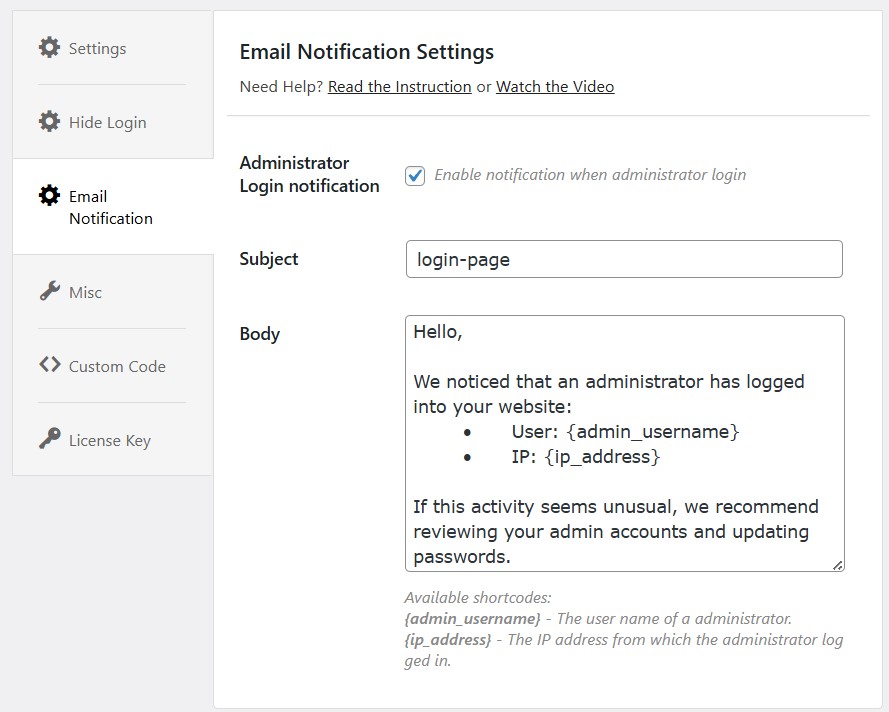
Go to the Email Notification tab:
Administrator Login notification – Enable
Email subject and body
You can customize both fields. The default body includes:
Hello,
We noticed that an administrator has logged into your website:
• User: {admin_username}
• IP: {ip_address}
If this activity seems unusual, we recommend reviewing your admin accounts and updating passwords.
Supported shortcodes
{admin_username} – shows who logged in
{ip_address} – shows the IP of the login source
Best Practices and Recommendations
• Do not use predictable slugs such as admin or login
• Store the new login URL in a safe place
• Enable administrator email notifications for better visibility
• Combine this feature with Google reCAPTCHA to block spam and bot attempts
• Change admin passwords regularly
• Use secure hosting and HTTPS
FAQ
Does changing the login URL break normal login?
No. Users and admins will simply log in using the new custom URL. The default login page becomes inaccessible.
What happens if I forget my custom login slug?
Use the hosting file manager or database access to temporarily disable the feature, or rename the plugin folder. After login, reconfigure the slug again.
Can I use the hide login URL feature together with reCAPTCHA protection?
Yes. It is recommended. reCaptcha will automatically protect the new login URL from automated login attempts.
Will I get a notification for every login?
Only when an account with administrator rights logs in.
Conclusion
Hiding the WordPress login page and enabling admin login email notifications significantly improves your site’s security without requiring complex configuration. These new reCaptcha features make it easier to protect sensitive access points, reduce brute-force attempts, and maintain visibility into administrator actions. If you want to strengthen your WordPress security setup, this combination of hidden login and real-time login alerts is highly recommended.